
This guide provides comprehensive troubleshooting steps for the TP-Link VX420-G2v modem supplied by Vocus. It covers common issues, setup procedures, and best practices to help you get the most out of your internet connection.
Modem Overview
The TP-Link VX420-G2v is a powerful modem router designed for Australia’s National Broadband Network (NBN). It supports various NBN connection types and includes a 4G backup feature to keep you connected if your primary service is interrupted.
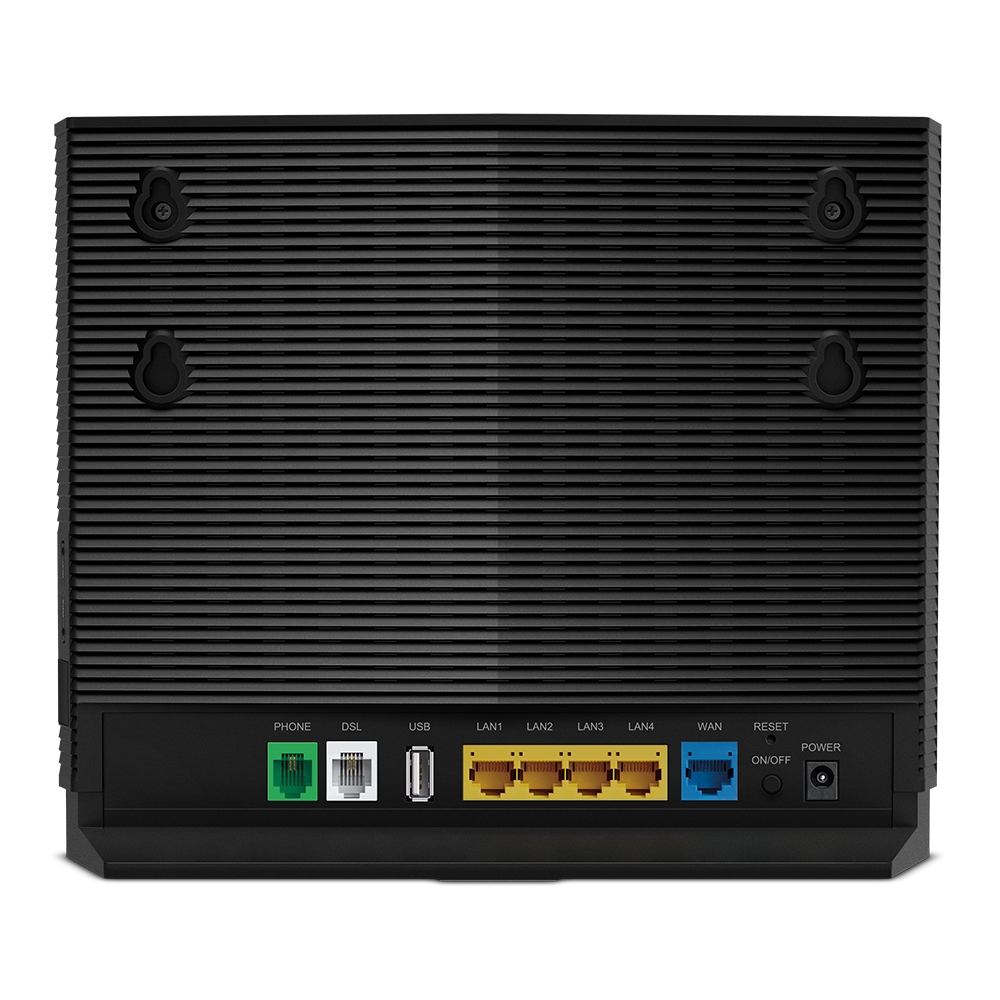
Key Features
- Wi-Fi 6: The latest Wi-Fi technology for faster speeds and better performance.
- 4G Backup: Automatically switches to a 4G mobile network if your NBN connection fails.
- VoIP Compatible: Supports Voice over IP (VoIP) for phone services.
LED Indicator Lights
Understanding the LED lights on your modem is the first step to diagnosing any issues. Here’s a quick guide to what the lights mean:
| Light | Status | Meaning |
|---|---|---|
| Power | Solid Green | The modem is powered on. |
| DSL | Solid Green | Your modem is connected to the NBN network (for FTTN/B/C connections). |
| Internet | Solid Green | Your modem is connected to the internet. |
| 4G | Flashing Green | The modem is using the 4G backup service. |
| Wi-Fi | Solid Green | The Wi-Fi network is active. |
| LAN | Solid Green | A device is connected to a LAN port via an Ethernet cable. |
| Phone | Solid Green | Your VoIP phone service is active. |
Common Troubleshooting Steps
If you’re experiencing internet issues, try these steps before contacting support.
1. Power Cycle Your Modem
A simple restart can often resolve connectivity problems.
- Turn off the modem using the power button.
- Unplug the power cable from the wall socket.
- Wait for 5 minutes.
- Plug the power cable back in and turn on the modem.
- Wait for the Power, DSL (if applicable), and Internet lights to turn solid green.
2. Check Your Cables
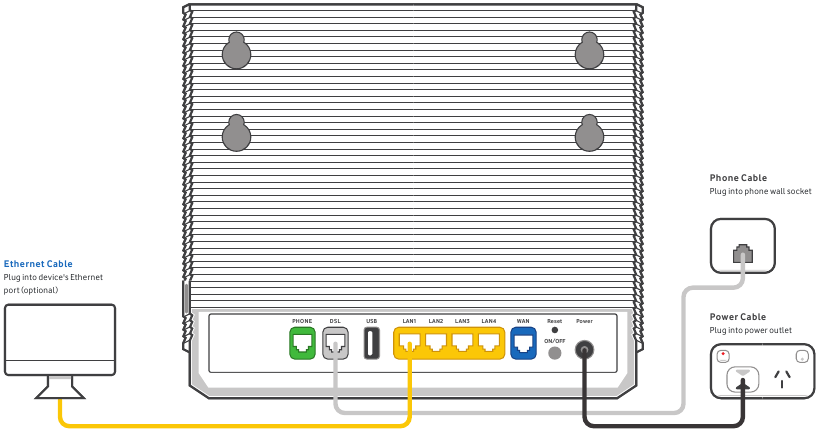
Ensure all cables are securely connected to the correct ports.
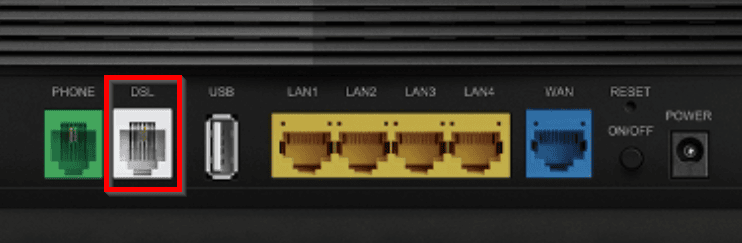
- The NBN connection cable should be plugged into the WAN or DSL port, depending on your connection type.
- Ethernet cables for wired devices should be plugged into the LAN ports.
- The power cable should be securely connected to the modem and a power outlet.
Contacting Support
If you’ve tried all the troubleshooting steps and are still experiencing issues, please contact the Comm Centre support team for further assistance.
This document is for informational purposes only. For detailed technical specifications, please refer to the official TP-Link website.

